
Your working day, in your pocket
Clock in with a QR code, check your shifts, request leave and approve your payslip. Download the app, sign in with your company’s Customer Code and you are ready.
You need your company’s Customer Code to sign in; ask HR or your manager for it.
Ready in three steps
The first time you open the app it asks for three things. After that, the menu shows only what your role allows.
- Download the appTap the store button for your phone and install Yetkin Mobile Plus.
- Enter your Customer CodeThis is your company’s code. HR or your manager will give it to you.
- Sign inWith your username or e-mail and your password. Quick sign-in by SMS code is also available.
Your Customer Code works like your staff pass: anyone can download the app, but the pass only opens your own company’s door, and inside you only see the rooms you are allowed into.
The everyday things, one tap away
Each section appears if the feature is switched on for your company and your role allows it.
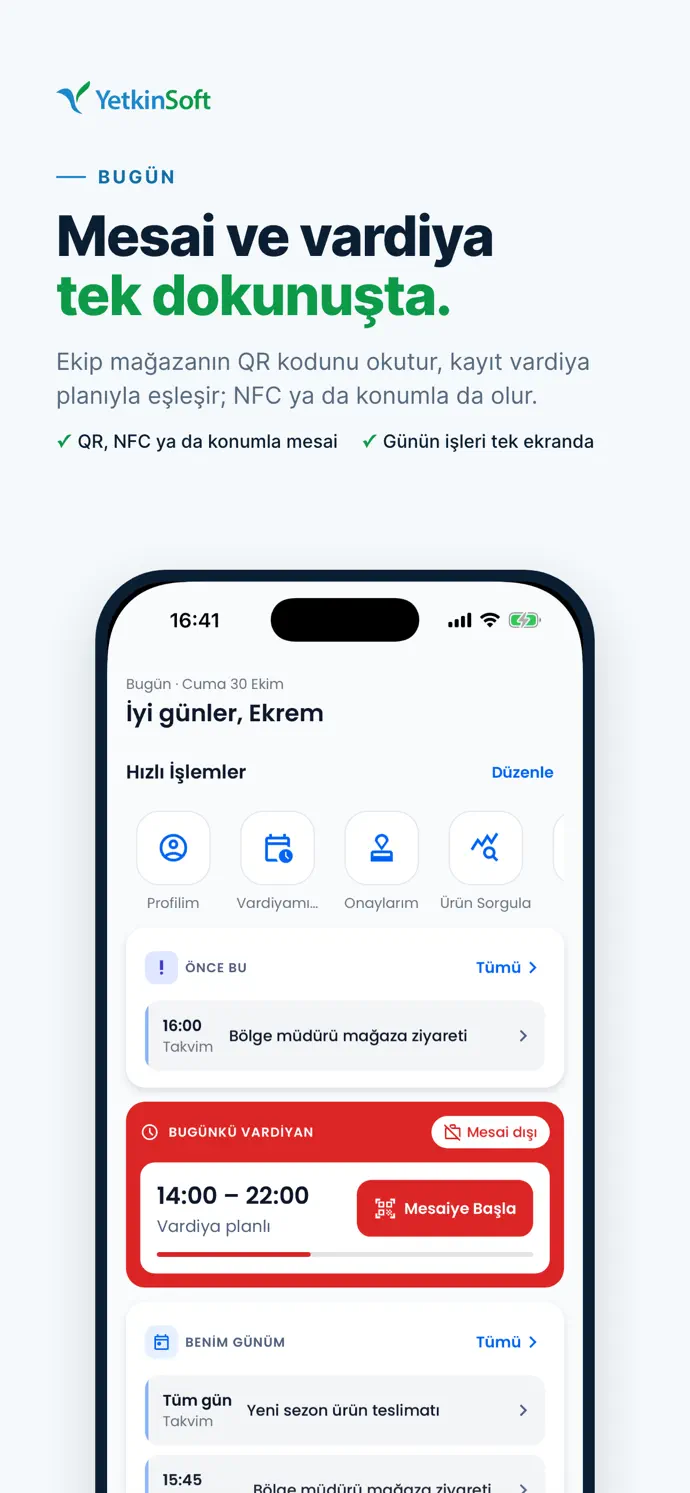
Clock in with one tap
Scan the store’s QR code or tap the NFC tag. Mobile staff can clock in by location at a nearby store.
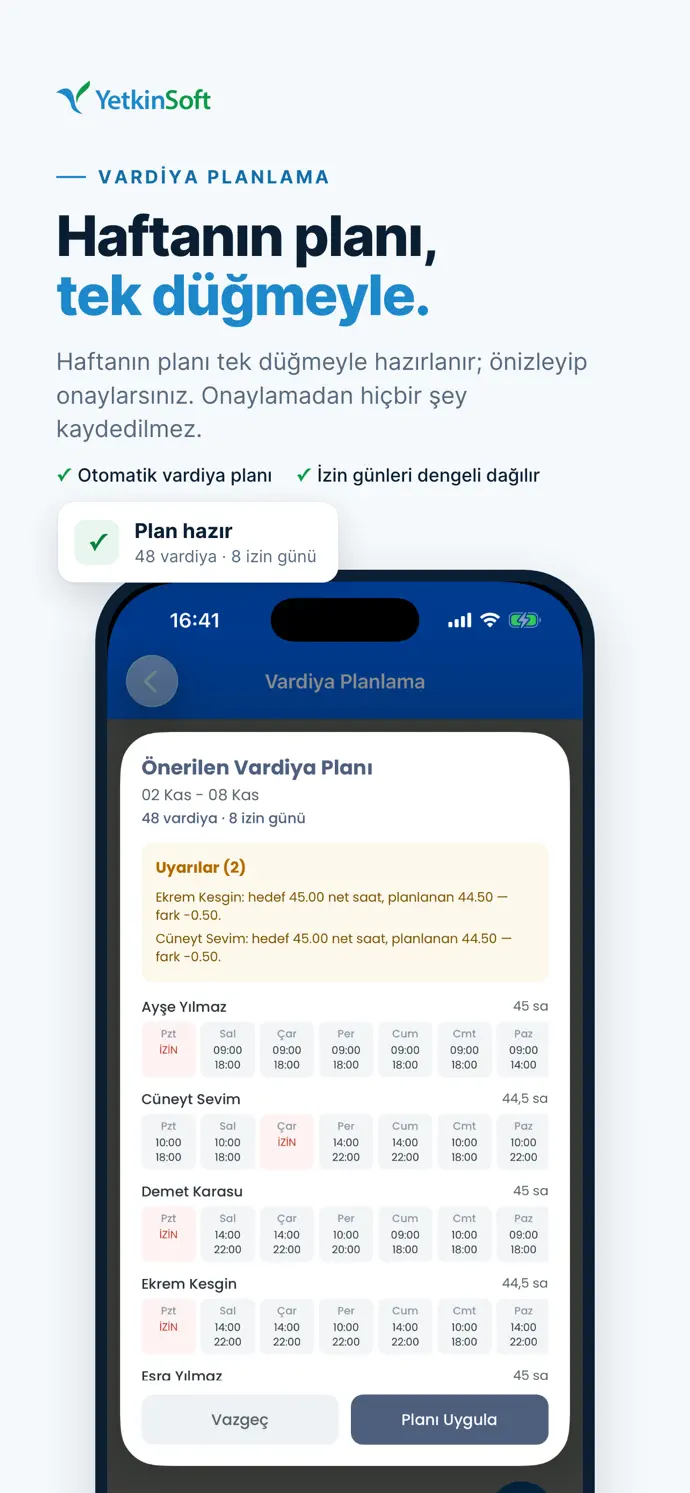
Your shifts, always at hand
See your weekly plan with exact hours. Store managers prepare the week with one button, preview it and approve.
Leave and overtime
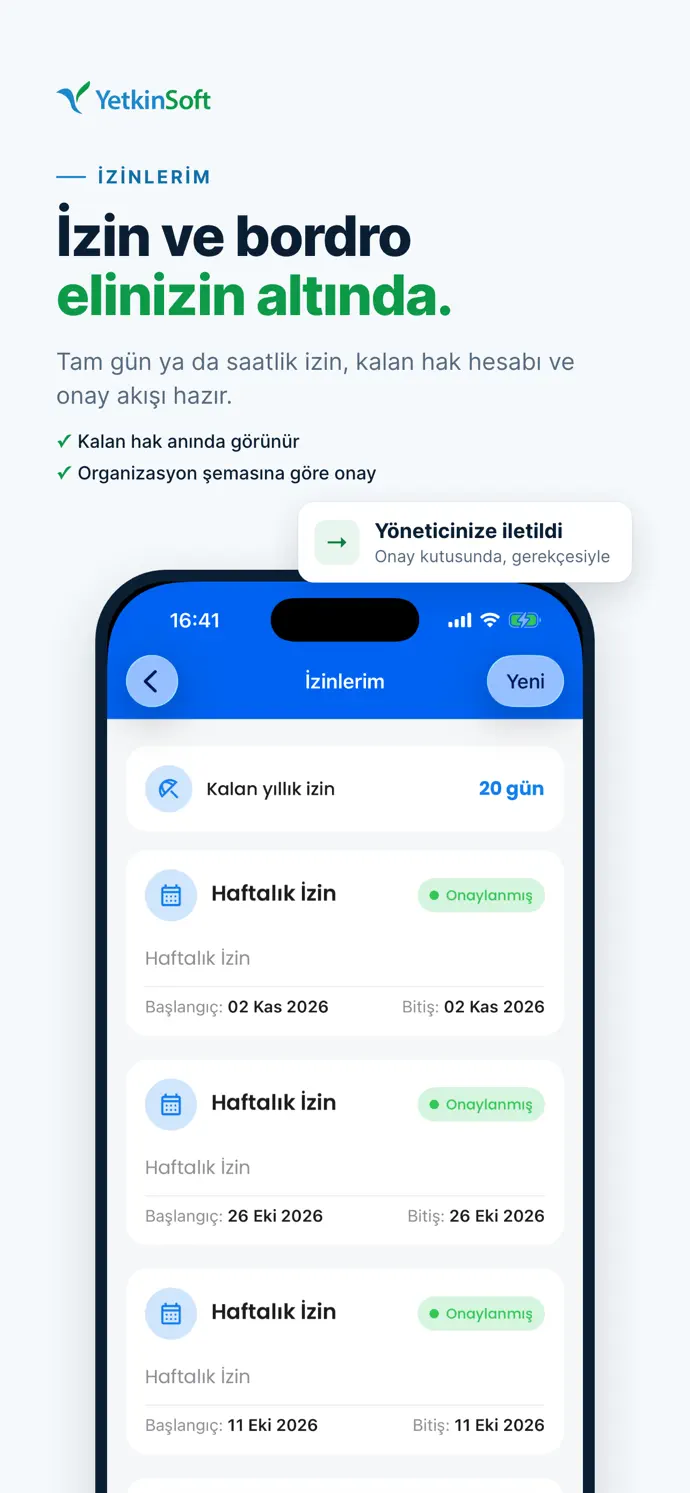
Request a full day or a few hours off, see your remaining balance and raise an overtime request.
Your payslip in your pocket
View your payslip as a PDF; approve it with an SMS code or raise an objection.
Products and stock
Scan a barcode; variants, campaigns and stock by store come live from the ERP.
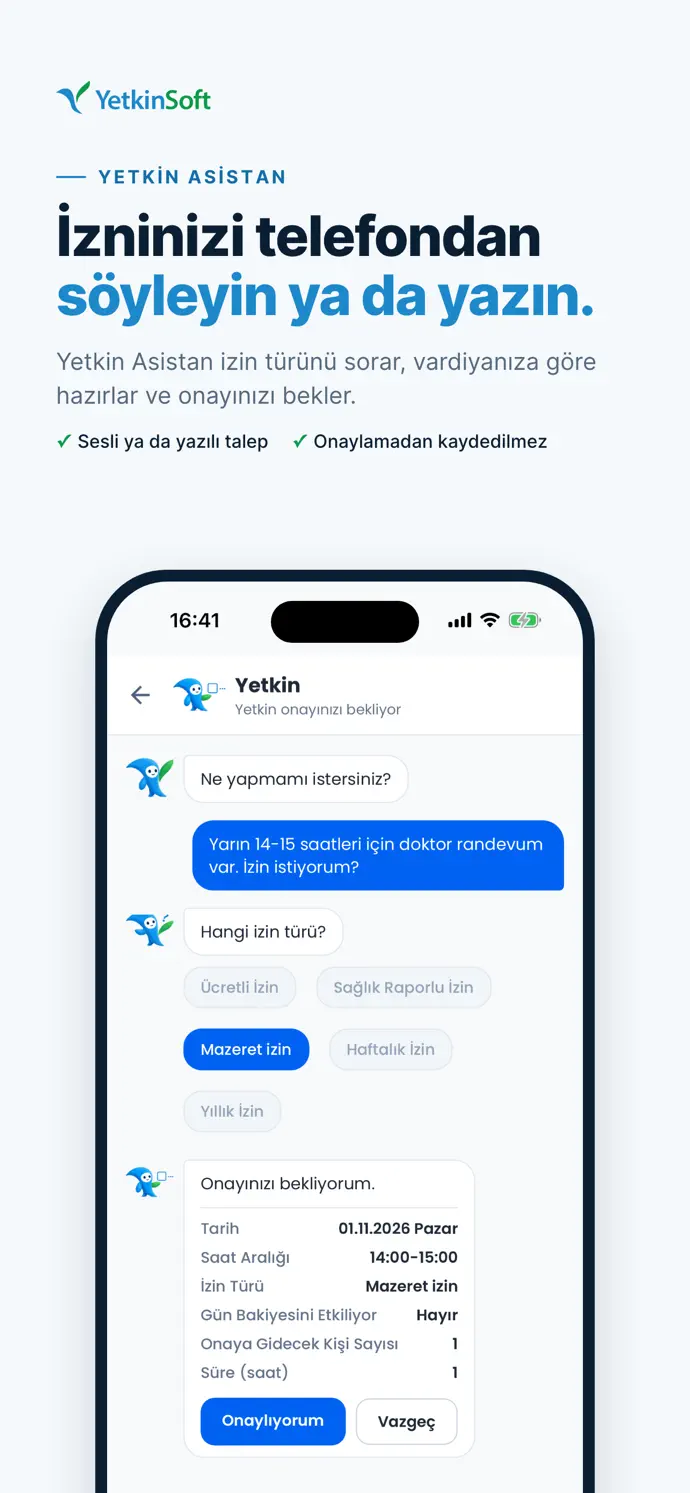
Yetkin Assistant
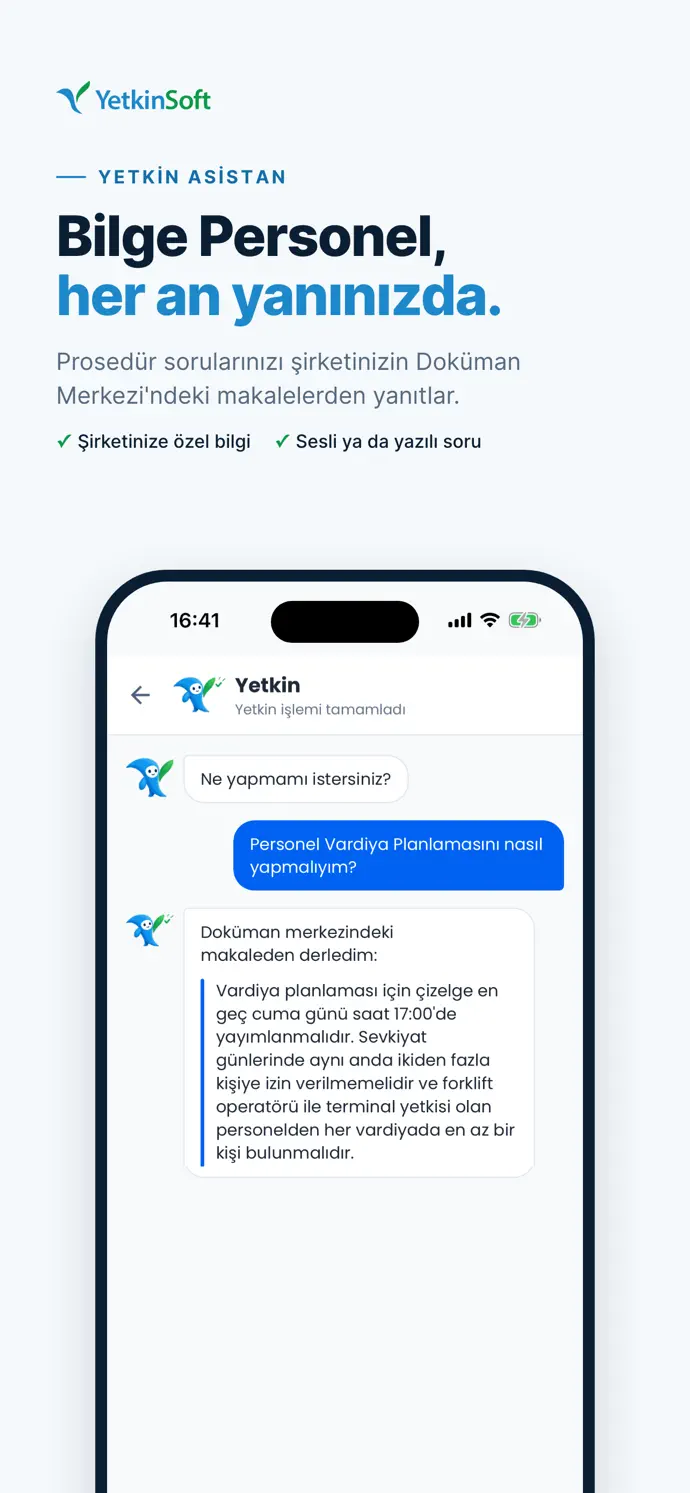
Type or speak your request; it asks what is missing and saves only with your approval.
From the store pages
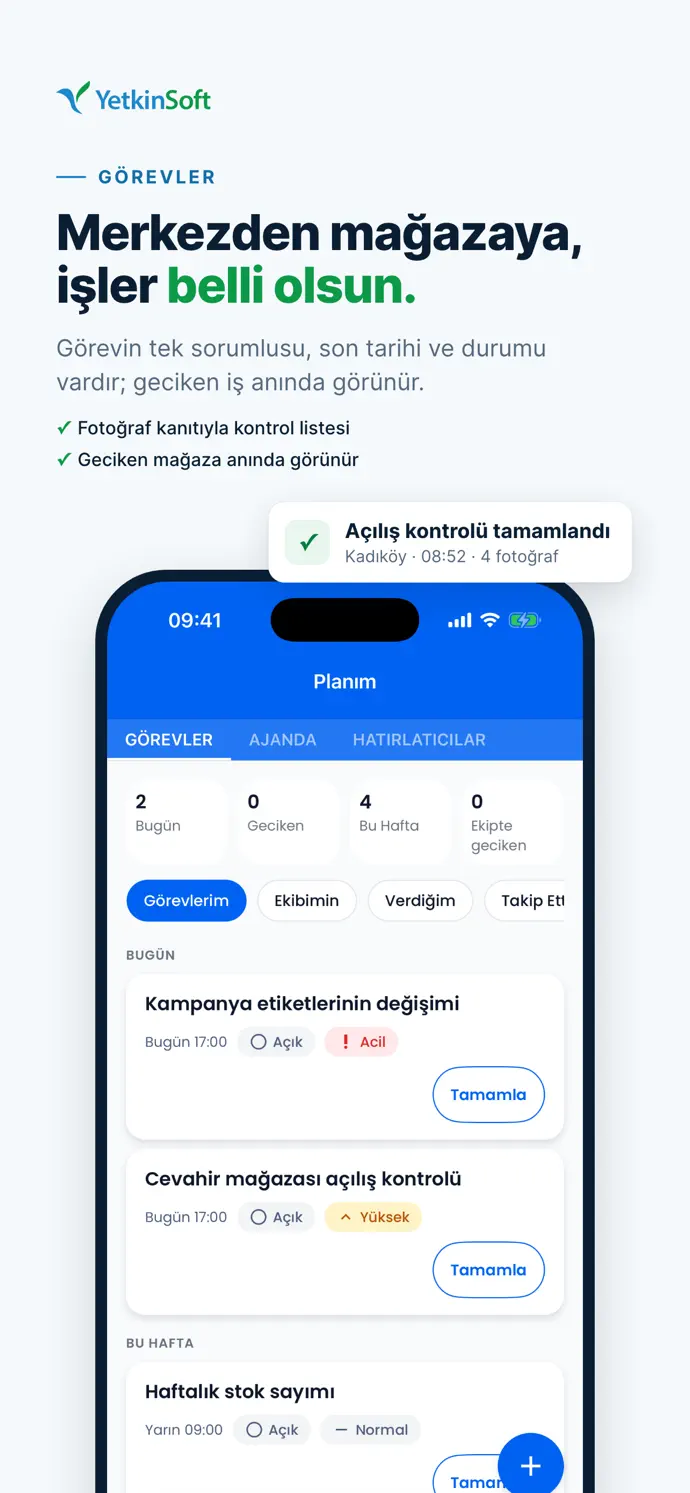
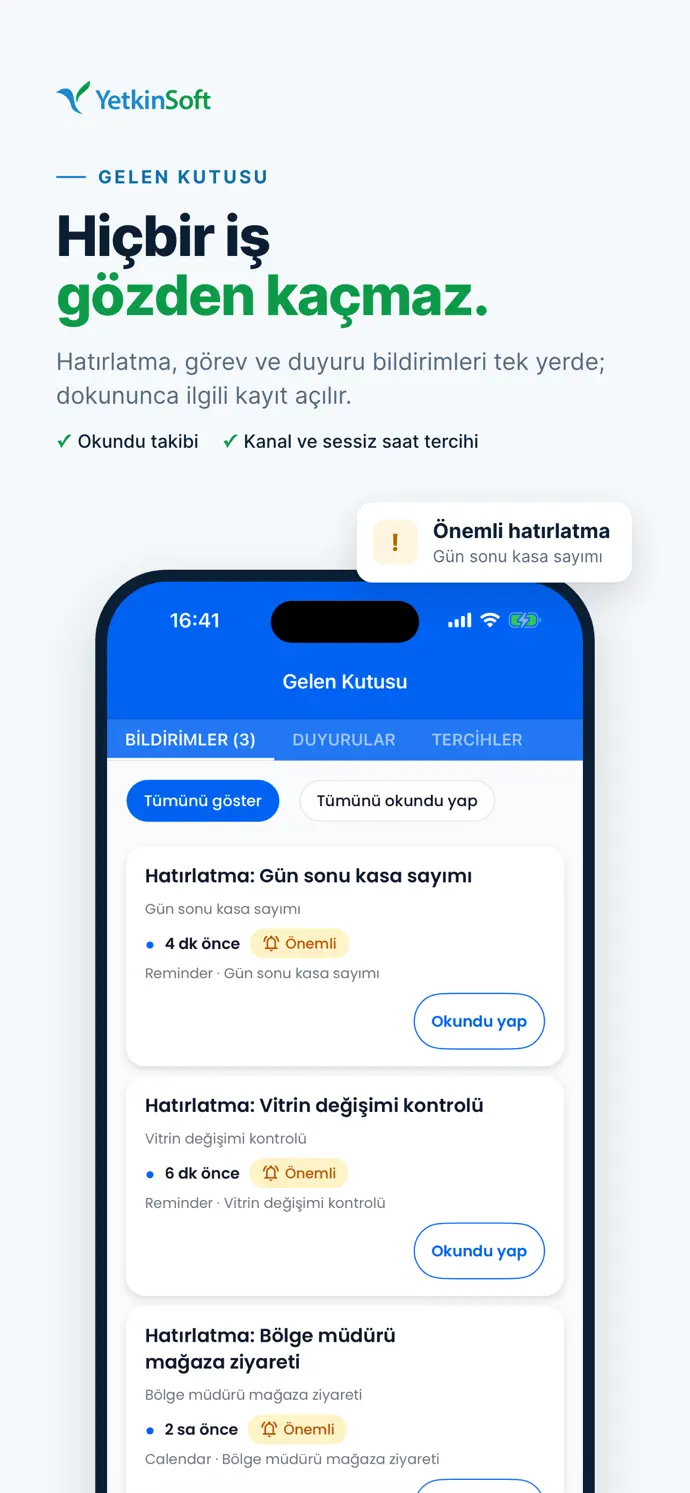
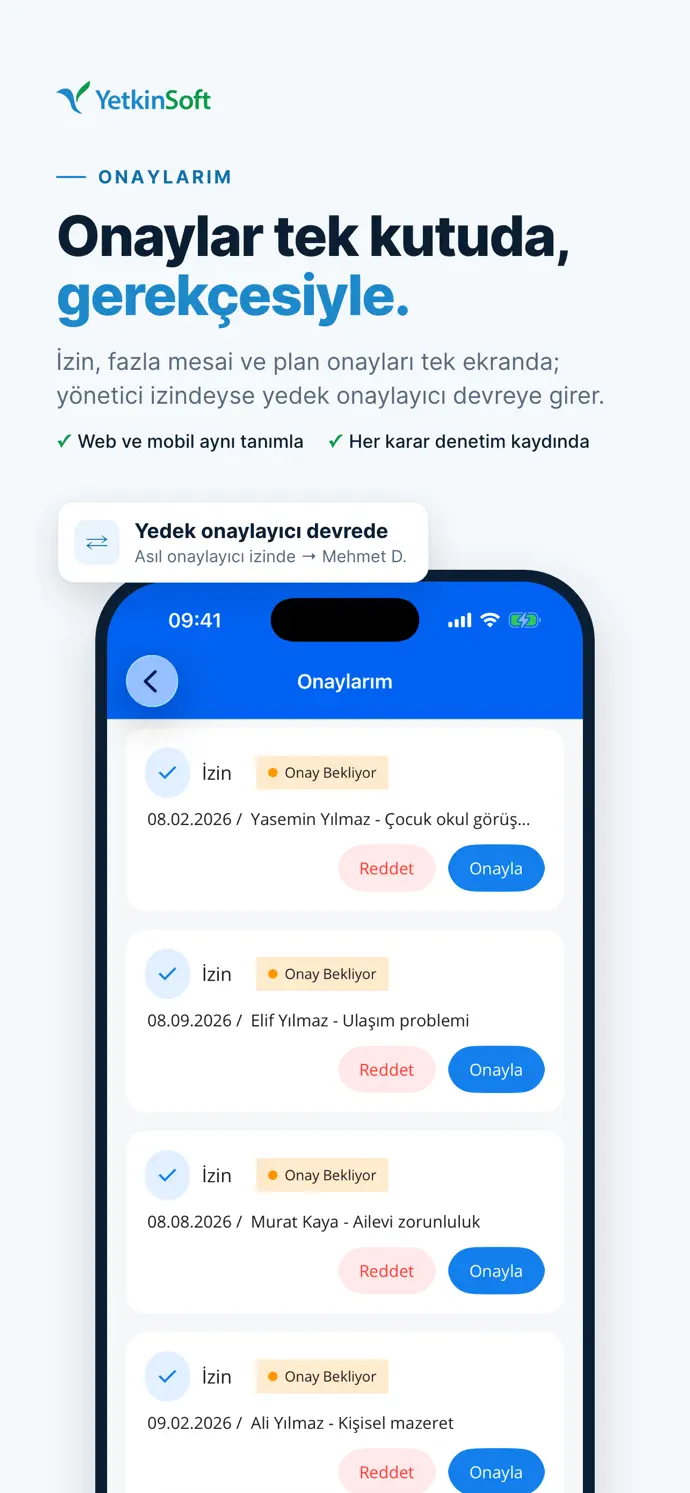
The images you will see on the App Store and Google Play; the interface shown is in Turkish.

Before you install
Which phones does it run on?
iPhone and iPad with iOS 15 or later, and Android phones with Android 7.0 or later.
Where do I get my Customer Code?
The Customer Code belongs to your company. Ask your HR team or your manager; there is no public sign-up.
Do I need an internet connection?
Yes. The app works live with Yetkin Portal, so attendance, leave and approvals are saved immediately.
Which permissions does it ask for?
Camera to scan QR codes and barcodes, location to clock in at a nearby store, and microphone only to dictate to the assistant. Speech is turned into text by your phone’s iOS or Android speech service; the app does not keep recordings.
How do I delete my account?
See Account and data deletion for the steps.
My company does not use Yetkin yet. Can I try it?
The app connects to your company’s Yetkin Portal. Request a demo and we will try it together with a real store scenario.
Is your company not on Yetkin yet?
Let’s plan a short demo for your store team and try the app together with a real store scenario.